
Automating Your Home Office Setup for Productivity
Picture this: you’re ready to start your workday, but instead of fumbling with switches and cables, your home office setup is instantly perfect.
Lights gently illuminate your workspace, your monitors are configured for optimal viewing, and your sound system is tuned to your preferred settings.
This isn’t a sci-fi fantasy; it’s the reality you can create by automating home office setup. This guide will explore how to achieve this effortless environment, helping you reclaim precious time and boost your focus.
You’ll gain practical knowledge to transform your workspace from chaotic to a seamless hub of productivity. Get ready to streamline your workflow!
Key Takeaways
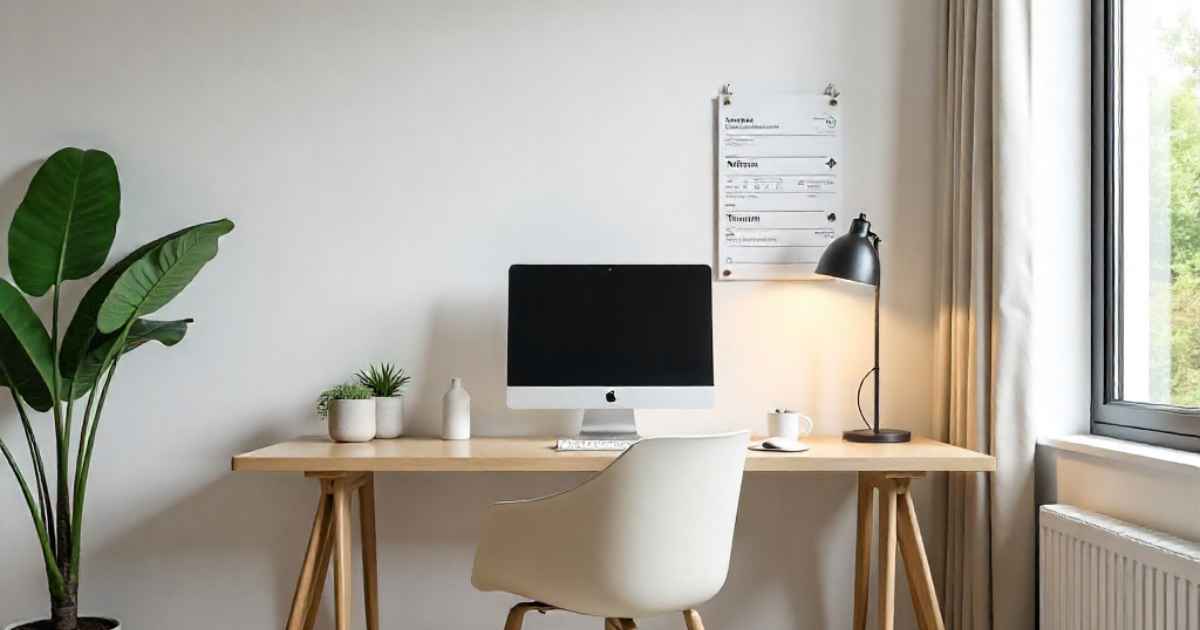
Transforming Your Workspace through Automation
Setting up an efficient and comfortable home office involves more than just a desk and a chair. It requires thoughtful consideration of lighting, monitor configuration, and sound management.
Automating these elements creates a personalized, distraction-free environment, allowing you to focus on your work.
This section will look at how you can use technology to create the ultimate workspace tailored to your needs.
Lights: Setting the Stage for Focus
Lighting plays a significant role in your productivity. Harsh, overhead lights can cause eye strain, while insufficient lighting can make it difficult to see and concentrate.
Automated lighting systems address these problems by adjusting the brightness and color temperature throughout the day.
These systems can sync with the time of day, your location, or even your activity, automatically transitioning between bright, energizing light in the morning and softer, warmer light in the evening to prepare you for a relaxing end to your day. It’s a simple setup with a huge impact on your overall focus and well-being.
- Smart Bulbs: Smart bulbs, like those from Philips Hue or LIFX, connect to your Wi-Fi and allow you to control them through a smartphone app or voice commands. You can adjust the brightness, color, and schedule lighting changes. Smart bulbs are the simplest entry point to automate your lighting.
Smart bulbs offer many advantages beyond basic on/off control. They come in various formats, including standard A19 bulbs, spotlights, and even light strips.
This range of options makes it easy to add smart lighting to nearly any space in your home office, offering both functional and decorative lighting solutions.
The ability to group bulbs and create scenes allows you to easily switch between different lighting setups for various tasks, like reading, working, or video calls.
- Automated Lighting Schedules: Set up schedules using your smart home app. For example, the lights could gradually brighten in the morning to simulate a sunrise, helping you wake up more naturally and easing you into your workday. In the evening, the system could dim the lights to help you relax.
Automated lighting schedules offer a simple way to create a consistent lighting environment throughout your day, helping you keep to a healthy circadian rhythm.
By synchronizing your lighting with your daily routine, you can make your workspace a more consistent environment that helps improve your focus and concentration.
This constant adjustment will reduce eye strain and fatigue, making you feel more comfortable and alert.
- Color Temperature Adjustment: Choose smart bulbs that allow you to change the color temperature. Cooler light (bluer tones) is best for focus, while warmer light (yellowish tones) is better for relaxation. Automate these changes throughout the day based on your needs.
Adjusting the color temperature of your lights can influence your mood, energy levels, and overall productivity.
Cooler light, with its bluer tones, is known to stimulate alertness and focus, making it ideal for tasks that demand concentration, such as writing reports, coding, or managing projects.
Warmer light, on the other hand, is a great option for evening use, or breaks in your work day. Being able to effortlessly switch between these settings will help you create a workplace that aligns with your daily and hourly needs.
- Motion Sensors and Ambient Light Sensors: Incorporate motion sensors and ambient light sensors to control your lights automatically. When you enter your office, the lights turn on, and they adjust brightness based on the amount of natural light.
Motion sensors automatically switch on lights when you enter the room, eliminating the need to manually adjust any settings.
Ambient light sensors gauge the amount of natural light entering your office and adjust the brightness of your smart lights accordingly.
This helps create a balanced lighting environment that uses minimal electricity while maintaining optimal visibility and comfort.
These can be combined to give a workspace that adjusts itself, without any interaction on your part.
Monitors: Creating Your Digital Canvas
Your monitors are your primary interface with your digital world, so optimizing their setup is crucial.
From the number of screens to the display settings and positioning, small adjustments can have a significant impact on your workflow.
Automating monitor configuration means setting up your displays to meet your individual preferences.
This could mean switching between work tasks, or switching to your favorite entertainment setup with a simple voice command, making your home office the perfect mix of productivity and fun.
- Multiple Monitor Setup: Consider using multiple monitors. This can significantly boost productivity by allowing you to view and work on multiple documents or applications simultaneously.
Multiple monitor setups have become a staple in modern offices, both in physical spaces and at home.
You can spread different applications across different screens, or have one screen for your work tasks, and another for reference material or communication tools.
Studies have shown that multiple monitors can improve productivity by up to 40% by reducing the need to switch between windows.
- Display Settings Automation: Use software like DisplayFusion or built-in operating system features to automate display settings. You can create profiles that adjust brightness, contrast, and color temperature for different times of day or tasks.
Automating your display settings can improve your viewing experience, reducing eye strain. The ability to switch between profiles offers a lot of freedom, allowing you to tailor your screen settings to match the light conditions of your workspace.
Brightness adjustments can be made to match the ambient lighting, while color temperature adjustments can optimize your screen’s appearance for different activities.
- Automated Layouts: Define layouts for your windows. DisplayFusion allows you to save and restore your window layouts. For example, you can have a layout for writing, another for coding, and another for video editing.
This allows you to customize your workspace to suit your needs, and makes it quick to restore your configuration for quick access when you are ready to work.
Setting up these layouts ensures your applications are automatically arranged on your screen, which removes any setup time from the start of your workday.
- Voice Control and Hotkeys: Integrate monitor control with voice assistants or assign hotkeys to change settings quickly. “Hey Siri, set monitors to work mode” or assign a key to cycle through brightness levels.
By integrating monitor controls with voice assistants or hotkeys, you can make quick changes without touching a button.
This setup can reduce the need to navigate settings menus or apps, by simply speaking a command.
Having these options can provide immediate changes to your monitor configuration as soon as you need them, letting you move back to your tasks.
Sound: Creating an Auditory Sanctuary
Sound plays a crucial role in creating a productive environment. Excessive noise can interrupt focus, while the right sounds can enhance concentration and relaxation.
Automating your sound setup helps you create a home office sanctuary. You can control everything from background music to noise cancellation. Your workspace will become a tailored soundscape designed to boost your efficiency.
- Noise Cancellation: Use noise-canceling headphones or software like Krisp to eliminate distracting background noises.
Noise-canceling headphones use sophisticated technology to create a sound wave that is exactly opposite to the external sounds.
This cancels out those sounds and creates a quiet environment. Software like Krisp employs advanced algorithms to remove background noise from your microphone during calls, ensuring clear communication, especially during video conferences. You can focus on what you’re doing, and not be affected by noise.
- Automated Sound Profiles: Create different sound profiles for various tasks. For example, a profile for writing might include ambient sounds or instrumental music, while a profile for phone calls might automatically mute notifications and activate noise cancellation.
Create sound profiles to match the task at hand. For writing, you might select ambient sounds like rain or nature sounds.
This can help boost your creativity. For calls, you would want to focus on clarity and use noise cancellation.
Automated sound profiles simplify your workflow by delivering soundscapes tailored to the demands of each task.
- Smart Speakers and Voice Control: Integrate smart speakers like Amazon Echo or Google Home to control music and other sounds using voice commands. “Alexa, play lo-fi music” or “Google, turn up the volume.”
Smart speakers give you voice control over your music, podcasts, or soundscapes, allowing you to customize your auditory environment effortlessly.
Using these commands, you can switch between productivity-enhancing music and relaxing ambient sounds without pausing your workflow. Smart speakers also support voice commands to control volume levels, skip tracks, and create playlists.
- Soundproofing Techniques: Supplement software and hardware solutions with physical soundproofing. Add acoustic panels, use a thick rug, and seal gaps around doors and windows.
Soundproofing is the best way to block outside distractions. Acoustic panels absorb sound and reduce echoes.
Sealing gaps in windows will also block noise from the outside. Thick rugs will dampen sound, and reduce echo.
Combining these techniques with your sound automation efforts creates a truly distraction-free workspace.
The Automation Toolkit: Essential Tools and Apps
The success of automating home office setup hinges on the tools you use. Fortunately, a wide range of apps, devices, and software options are available to help you build the perfect automated office.
From smart home hubs to specialized apps, the right combination of tools will turn your home office into a seamless hub of productivity.
Smart Home Hubs: The Central Control Point
Smart home hubs serve as the command center for all your connected devices. By connecting your lights, monitors, and sound systems to a single hub, you can control everything from one place.
These hubs make it simple to automate your workspace, streamline your workflow, and set up custom scenarios tailored to your needs.
- Amazon Echo (Alexa): Alexa is a popular voice assistant that integrates with a wide variety of smart home devices. You can control lighting, play music, set up routines, and more using voice commands.
The Amazon Echo provides a versatile and user-friendly platform for automating your home office. Alexa's extensive skills library enables integration with many devices, allowing you to create custom voice commands and routines for any setup. This hub is easy to use and a good choice for people new to smart home technology.
- Google Home (Google Assistant): Google Home offers similar functionality to Alexa, with strong integration with Google services. It’s a great choice if you use Google products.
Google Home provides a streamlined way to manage your smart home setup, particularly for those already invested in the Google ecosystem.
With Google Assistant, you can create routines that combine different actions, such as turning on the lights, starting your music, and adjusting your monitor settings with a single command.
- Apple HomeKit: If you use Apple products, HomeKit provides seamless integration with Apple devices. It prioritizes privacy and security, and integrates well with Siri.
Apple HomeKit is the best option for people who prefer Apple products. It ensures smooth interaction with all Apple devices.
HomeKit focuses on privacy, allowing you to manage your smart home devices securely. You can also use Siri for voice control, offering a seamless user experience within the Apple ecosystem.
- SmartThings: SmartThings is a versatile hub that works with a large number of devices. It offers advanced automation options and is ideal for users looking to customize their setup.
SmartThings is one of the most flexible options because it is compatible with many smart devices and technologies. It gives users advanced automation abilities.
SmartThings lets you customize your home office setup with advanced functionality, which offers control over your environment.
Apps and Software: The Brains Behind the Automation
Beyond hardware, various apps and software programs are essential for automating your home office setup. These applications allow you to fine-tune your settings, create custom routines, and manage your devices from a single interface. These are essential for creating the perfect workspace.
- IFTTT (If This Then That): IFTTT is a powerful automation tool that connects different apps and devices. You can set up “recipes” that trigger actions based on certain events. For instance, you could set up a recipe to turn on your lights when you start your workday calendar event.
IFTTT lets you create personalized automation routines across various apps and services. This app enables you to create customized actions. IFTTT’s user-friendly approach makes automating complex tasks simple.
This allows users to connect various devices and services, from smart home gadgets to social media platforms, to create seamless workflows.
- DisplayFusion: As mentioned earlier, DisplayFusion is a dedicated monitor management tool that allows you to automate monitor settings, create custom layouts, and manage multi-monitor setups.
DisplayFusion is the go-to tool for managing multi-monitor setups. DisplayFusion simplifies monitor settings. It can make switching between layouts and automatically arranging windows much easier. This can improve workflow and boost productivity.
- Krisp: Krisp is an AI-powered noise cancellation app that removes background noise from your microphone and incoming audio during calls and meetings.
Krisp helps ensure that your voice is clear and audible during online meetings and calls. Krisp’s noise reduction technology isolates your voice and removes any background distractions.
This app is essential for creating a professional and focused communication experience, particularly in home offices with potential noise issues.
- Smart Home App (Philips Hue, LIFX, etc.): The apps for your smart home devices (like Philips Hue or LIFX) are essential for controlling your smart lights and setting up schedules and scenes.
These apps offer the tools to manage your smart lighting system. They give you the power to control your lights’ brightness, color, and more.
This app allows you to customize your lighting to your exact needs. This is crucial for creating your ideal workspace.
Crafting Your Personalized Workflow
The goal of automating home office setup is to create a workspace that boosts your productivity. Your perfect setup is unique to your needs.
This involves combining hardware and software to fit your daily tasks and preferences. Here are some options to help you craft your best automated workflow.
Creating Customized Scenes and Routines
Custom scenes and routines let you group several actions to create specific environments that fit your work habits.
Creating these personalized automation experiences is the core of an efficient workspace. It also ensures your workspace meets your needs.
- Workday Morning Routine: Automatically turn on the lights to a bright, energizing color, start your favorite playlist, and open your calendar application.
This routine is designed to get your day started quickly. It focuses on making sure you are awake and ready to work. This can be combined with other routines, such as turning on your monitor and opening your most used applications.
- Focused Work Session: Dim the lights, enable noise cancellation on your headphones, and set your monitor layout to your preferred writing or coding configuration.
This routine is made for when you need to be productive. It cuts distractions. These customized settings focus on your task. You can also add other settings to this routine, such as turning off your notifications.
- Evening Wind-Down Routine: Dim the lights to a warm, relaxing color, play calming music, and set your monitor brightness to a low level.
This routine allows you to separate the end of your workday, and prepare you for the evening. It sets the tone for relaxation, helping you transition smoothly from work to downtime. Creating a clear transition is essential to maintaining focus.
Integration and Compatibility: Bridging the Gaps
Ensuring that all your automated devices are compatible is crucial. Integration makes for a well-connected and effortless workspace. Check the compatibility of the devices, and make sure they work together.
- Check Compatibility: Make sure your chosen devices and apps work together. Check compatibility lists and read reviews before purchasing.
Compatibility is important for your setup. Always look at device compatibility lists, to make sure all your devices work together. Check reviews and community forums, to find what works for others.
- Use a Central Hub: Use a smart home hub (like Amazon Echo, Google Home, or SmartThings) to connect all your devices.
Using a smart home hub gives a central point of control. You can control many devices, and make custom routines to suit your needs. This reduces setup time and enhances efficiency.
- Explore IFTTT Integration: Use IFTTT to connect devices and apps that don’t natively work together. This will expand your automation options.
IFTTT is perfect for connecting different apps and devices. This is great for apps that don’t directly integrate. You can use it to create unique automations that will meet your needs.
Experimentation and Iteration: Refining Your Setup
Your ideal automated setup may require some experimentation. You might need to make adjustments based on your needs. Testing and adjusting your setup will make it more useful. The perfect office is built over time.
- Start Simple: Begin with basic automation tasks, such as turning on lights. Then, progressively add more complex routines.
Starting with simple automation tasks is a good way to get used to it. Add more tasks over time as you go. This will make your progress smoother, and you will become more comfortable with the automation process.
- Test and Adjust: Test your routines and adjust them based on your experiences. Not everything will work as planned, so be prepared to change your setup.
Test out your routines and see what works best. Then, adjust them based on what you find. Every workspace is different, so don’t be afraid to try different things.
- Monitor and Optimize: Regularly monitor your automated systems to ensure they’re functioning correctly. Check your efficiency.
Keep a close eye on your automation. This will help you identify any problems, or opportunities for improvement. You can improve your productivity by making regular changes.
Real-Life Examples and Case Studies
Let’s explore some real-life examples and case studies. These cases demonstrate the real-world benefits of automating home office setup. The following examples show how automation can improve your work and your overall well-being.
- The Remote Freelancer:
A freelance writer, Sarah, found that she frequently struggled with focus and procrastination at the beginning of each workday. She invested in smart lighting and a smart speaker. She set up an “energize” routine that gradually brightened her lights, played an upbeat playlist, and opened her writing software at 9 am. This simple automation helped her develop a productive morning routine and increased her daily output by approximately 20%.
Sarah’s story shows the power of automation. By using simple routines, she created a space and setup that matched her requirements. She improved her output, and focused more on her tasks.
- The Tech Startup Founder:
The founder of a tech startup, John, spent long hours on video calls and screen-intensive tasks. He used a multi-monitor setup and software to automate display settings. His setup would reduce blue light emissions in the evenings, which also provided a reduction in eye strain. Over time, he saw a decrease in eye strain and headaches, as well as an improvement in his overall mood and productivity. His setup allowed him to work better, and get more out of his day.
John’s experience demonstrates how automation can enhance your health. By changing his display settings, he reduced headaches, while also increasing his focus and productivity.
FAQ Of Automating Your Home Office Setup for Productivity
What are the biggest benefits of automating my home office?
A: Automating your home office setup improves your productivity and efficiency. It can reduce distractions, optimize your workspace, and save you valuable time. You can also customize your experience, improving comfort and reducing eye strain.
How much does it cost to automate a home office setup?
A: The cost varies depending on your needs. A basic setup might cost a few hundred dollars. More comprehensive systems can cost more. Many options fit different budgets, so you can start small and grow over time.
What if I’m not tech-savvy? Is it difficult to set up?
A: Many products are designed to be easy to set up. Most smart home devices and apps have user-friendly interfaces. There’s plenty of help available online. You can learn the basics, and start automating your office with ease.
Can I automate my home office using voice control?
A: Yes, voice control is a key part of many automation systems. Smart speakers like Amazon Echo and Google Home let you manage lights, music, and other devices using simple voice commands. This will streamline your workflow.
What if my devices aren’t compatible? How do I fix that?
A: You can try using a smart home hub. Smart home hubs like SmartThings or Home Assistant work with several different devices. You can also use IFTTT to link different apps and devices. This is great for bridging gaps between systems.
Final Thoughts
Automating your home office isn’t just about setting up cool tech; it’s about crafting a workspace perfectly tailored to your needs.
By taking the time to automate home office setup, you’re creating a space that works for you. From adjusting lighting and configuring your monitors to managing sound, you’re paving the way for improved productivity.
This will give you focus, making your workflow efficient and making you feel energized. Experiment with different tools and settings to find what works best for you. Embrace the power of automation and transform your home office into a hub of productivity.
![Smart Home Solutions That Don’T Require Drilling[1]](https://gigasecurehome.com/wp-content/uploads/2026/01/Smart_Home_Solutions_That_DonT_Require_Drilling1-768x448.jpg)
![Can You Use Smart Locks In Rented Homes[1]](https://gigasecurehome.com/wp-content/uploads/2026/01/Can_You_Use_Smart_Locks_In_Rented_Homes1-768x448.jpg)

![What Not To Leave Outside Overnight[1]](https://gigasecurehome.com/wp-content/uploads/2025/11/What_Not_To_Leave_Outside_Overnight1-768x448.jpg)